
Gamers upgrading their systems often wonder: “Can you see 200 FPS on a 144Hz monitor?” Modern GPUs can easily push frame rates well above 144 FPS, especially at 1080p. But a monitor has a physical refresh limit, which raises the question: do those extra frames matter, or are they wasted?
This guide explains exactly what happens when your GPU outputs 200 FPS on a 144Hz monitor, whether you’ll notice a difference, and how to maximize performance and responsiveness in gaming.
Can a 144Hz Monitor Display 200 FPS?
No, a 144Hz monitor cannot display more than 144 frames per second.
- Refresh rate (Hz) = number of times a monitor updates the screen per second
- FPS = number of frames the GPU renders per second
A 144Hz monitor refreshes 144 times per second. If your GPU produces 200 FPS, only 144 of those frames are actually displayed.
Extra frames are processed by the GPU but are not visible on screen.
What Happens If FPS Exceeds Refresh Rate?
Even though the monitor cannot show 200 FPS, producing extra frames is not wasted entirely.
1. Reduced Input Lag
Higher FPS reduces the time between your input (mouse, keyboard) and what appears on screen. Even if you only see 144 FPS, the additional frames help lower response time — something a Bottleneck Calculator can help you understand by showing how your CPU and GPU impact overall performance.
2. Smoother Frame Delivery
Rendering more frames improves frame pacing, reducing micro-stutter and making gameplay feel slightly smoother.
3. Screen Tearing
If FPS exceeds refresh rate and V-Sync or adaptive sync is off, you may notice screen tearing, where part of the previous frame is visible alongside the current one.
Does Extra FPS Matter on a 144Hz Monitor?
Yes, but visually limited
- You cannot see more than 144 frames.
- You can benefit from lower input lag and smoother frame pacing.
Who benefits most:
- Competitive shooters (Valorant, CS2, Apex Legends)
- Fast-paced esports titles
- Players focused on minimal input delay
For casual or single-player games, FPS above 144 provides minimal noticeable improvement.
How to Optimize 200+ FPS on a 144Hz Monitor
If your system produces 200 FPS or higher on a 144Hz monitor, you can optimize performance using these steps:
1. Enable V-Sync or Adaptive Sync
- G-Sync (NVIDIA) or FreeSync (AMD) reduces tearing and maintains smooth motion
- Prevents screen tearing when FPS exceeds monitor refresh rate
2. Cap FPS Slightly Above Refresh Rate
- Use in-game or driver settings to cap FPS at around 145–150 FPS using a Bottleneck Calculator
- Reduces GPU load without visual impact and helps identify CPU–GPU performance balance
3. Ensure Monitor is Set to 144Hz
- Check Windows → Display → Advanced Display Settings
- Some monitors default to 60Hz if not manually set
4. Optimize Game Settings
- Lower CPU/GPU heavy options like shadows, post-processing, or draw distance to maintain stable high FPS
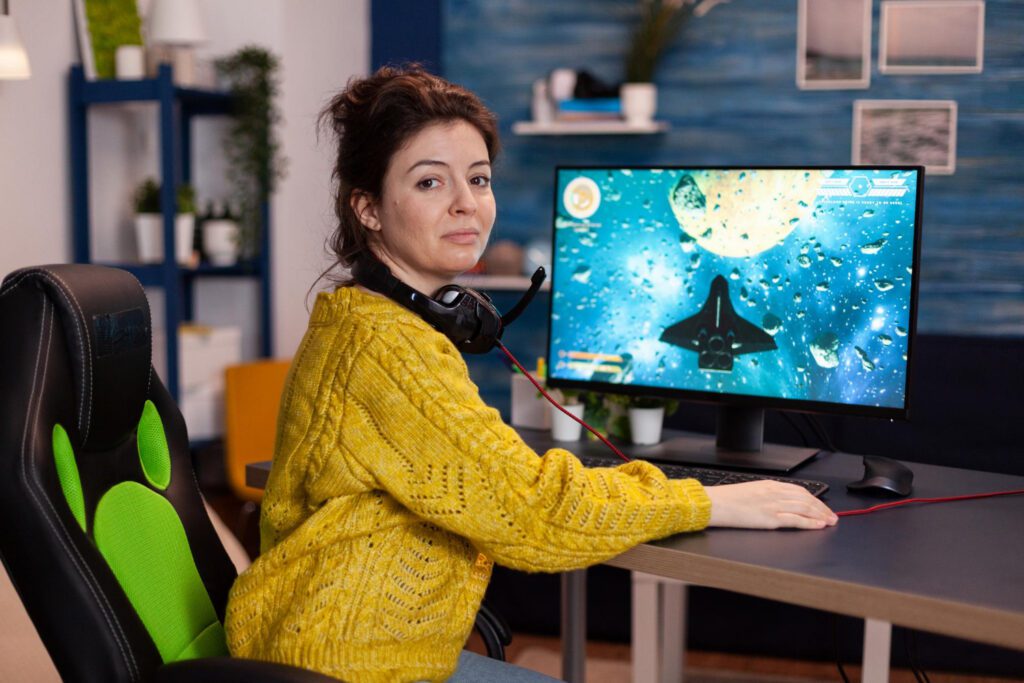
Is 200 FPS on a 144Hz Monitor Noticeable?
Visually:
No. Your eyes will only perceive up to 144 frames per second, even if the GPU produces 200+ FPS.
Mechanically:
Yes. Extra frames reduce input latency. Competitive players often run FPS well above their monitor’s refresh rate to maximize responsiveness.
- 144Hz → frame interval ~6.94 ms
- 200 FPS rendered → frame interval ~5 ms
- Reduced latency improves reaction times
So while you won’t see 200 frames, your gameplay can feel slightly more responsive.
When Should You Consider Upgrading Your Monitor?
If you consistently hit 200+ FPS and want to see all frames:
1. 240Hz or Higher Monitors
- Fully display 200 FPS
- Reduce motion blur and input delay
- Ideal for competitive FPS games
2. 360Hz Monitors
- Maximize responsiveness for professional esports
- Extremely high frame rate capability
3. High-End GPUs
- RTX 4070, 4080, 4090, or AMD RX 7900 series
- Capable of producing consistent 200–300 FPS at 1080p
Check whether your CPU and GPU are balanced with tools like How Do I Know If I’m Bottlenecking My GPU?.
Summary Table: 144Hz vs 200 FPS
| Metric | 144Hz Monitor | 200 FPS GPU Output | Result |
| Displayed Frames | 144 | 144 | Limited by monitor |
| Extra Frames | N/A | 56 frames | Reduce input lag, not visible |
| Input Lag | 6.94 ms | 5 ms | Slightly lower latency |
| Motion Smoothness | Smooth | Slightly improved | Subtle improvement |
| Tearing | Possible without sync | Higher chance | Use adaptive sync |
FAQ: People Also Ask
Can you see 200 FPS on a 144Hz monitor?
No, a 144Hz monitor can only display 144 frames per second. Extra FPS reduces input lag but isn’t visually shown.
Does FPS above 144 help gaming?
Yes, it improves responsiveness, frame pacing, and reduces input latency.
Do I need a 240Hz monitor for 200 FPS?
Yes. To see all 200 frames, a 240Hz monitor is required.
Will my GPU be wasted on a 144Hz monitor?
Not wasted. Extra FPS still provides latency benefits, even if you can’t see all frames.
Is there a noticeable difference between 144Hz and 200 FPS?
Not visually. The difference is mainly in responsiveness and input lag, noticeable for competitive gamers.
Conclusion
You cannot see 200 FPS on a 144Hz monitor, but running your system at 200+ FPS still reduces input lag and improves frame pacing. A 144Hz monitor is ideal for most gamers, but competitive players aiming for maximum responsiveness may benefit from 240Hz or higher displays.To ensure your PC can consistently handle high FPS without bottlenecks, check your system balance with the Bottleneck Calculator and adjust game settings for optimal performance.