
Is your computer running slow? You’re not alone. Many people face this frustrating issue daily.
A sluggish computer can disrupt your workflow and test your patience. But don’t worry, there are solutions.
This guide will provide you with practical tips to speed up your computer.
Whether you’re a casual user or have some technical know-how, these tips are for you.
From simple maintenance tasks to hardware upgrades, there’s something for everyone.
You’ll learn how to optimize your system for better performance.
Say goodbye to slow loading times and hello to a fast computer.
Let’s dive into the world of faster PCs and laptops.
Why Is My Computer Running Slow?
Understanding why your computer is running slow is the first step to fixing it. Several factors can lead to slow performance.
Common reasons include insufficient memory and outdated hardware. Cluttered storage can also contribute to this issue.
Software-related problems often cause a computer to operate slowly. These include malware, overloaded startup programs, and unneeded software.
Here are some common causes of a sluggish computer:
- Insufficient RAM
- Malware infections
- Overloaded startup programs
- Unnecessary background processes
A slow performance of computer systems can be frustrating. Identifying the cause will help you target the right solution.
With the right steps, you can turn a slow computer system into a faster PC. The following tips will guide you through resolving these issues.
Tip 1: Restart Your Computer Regularly
Restarting your computer is a simple yet effective way to speed it up. It helps clear temporary files and refreshes the system’s memory.
When your computer operates for long periods, files and processes accumulate. These can slow down performance significantly over time.
Make it a habit to restart your computer at least once a week. This not only helps maintain faster performance but also resolves minor bugs and glitches. Regular restarts keep your operating system running efficiently and prevent a slow computer system.
Tip 2: Check for Malware and Viruses
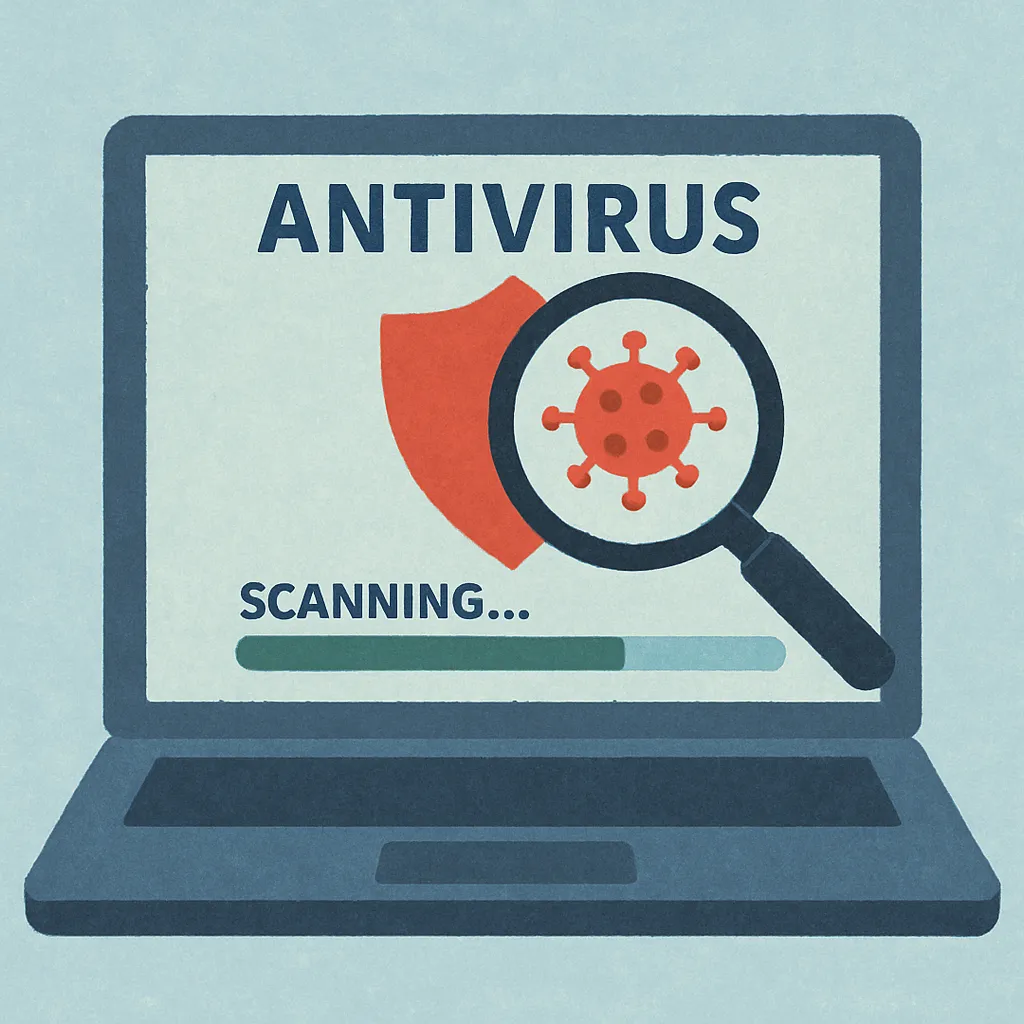
Malware and viruses can drastically reduce your computer’s speed. They often run in the background, consuming valuable resources without your knowledge. Ensuring your computer is free from these threats is crucial for maintaining optimal performance.
Install reputable antivirus software and run regular scans. This will help identify and remove any malicious software that may be slowing down your system. Keeping your antivirus program up-to-date is equally important, as new threats emerge constantly.
Here’s how to maintain a secure and fast computer:
- Use reliable antivirus software.
- Schedule regular scans for threats.
- Keep your antivirus definitions updated.
Keeping your system secure will not only boost speed but also protect sensitive data. A secure, fast computer creates a more efficient and stress-free work environment.
Tip 3: Uninstall Unnecessary Programs
Many computers come with pre-installed programs, also known as bloatware, that can slow down performance. These programs occupy valuable disk space and often run background processes, affecting speed.
Regularly review your installed programs and remove those you no longer use. This helps free up system resources and improves your computer’s speed. You can use the control panel or settings app to easily uninstall these programs.
Consider removing or disabling:
- Trial software and demos
- Old games and apps
- Unused browser add-ons
By cleaning up your software, you create a more efficient environment. This process not only speeds up loading times but also minimizes software conflicts, leading to a smoother user experience.
Tip 4: Disable Startup Programs
Startup programs run every time you turn on your computer, causing longer boot times. Many of these are not needed right away and can slow down system performance.
To speed up your PC, manage which programs launch at startup. You can disable unnecessary ones through the task manager or system configuration settings. This change can significantly improve how fast your computer becomes ready for use.
Focus on disabling:
- Chat applications
- Software updaters
- Cloud services
Reducing the number of startup programs lightens the load on your computer’s resources. As a result, you will experience quicker startup times and improved overall speed. This small adjustment can make a noticeable difference in daily computer use.
Tip 5: Free Up Disk Space
Your computer can operate more smoothly with enough free disk space. A cluttered hard drive hinders performance and can cause your computer to run really slow. Regular maintenance is crucial for keeping things tidy.
Begin by removing unnecessary files. Check your Downloads and Documents folders for items you no longer need. Deleting them will free up valuable space.
Utilize disk cleanup tools to tackle temporary files, cache, and system files. These tools automate the process and make it easier to maintain a healthy disk.
Consider moving large, infrequently accessed files to external drives or cloud storage. This keeps your main drive less congested and improves speed.
- Remove large files and old software
- Use built-in disk cleanup tools
- Opt for cloud storage or external drives
These actions give your system the breathing room it needs, leading to faster performance and reducing the chance of future slowdowns.

Tip 6: Defragment and Optimize Your Hard Drive
Over time, data fragments across your hard drive, making access time slower. Defragmentation reorganizes this data, enhancing speed and efficiency. Most operating systems have built-in tools for this purpose.
Regularly checking your hard drive’s fragmentation status is crucial for maintaining optimal performance. Schedule defragmentation during low-usage times to minimize disruption.
Optimize the process by first analyzing the drive to determine if defragmentation is necessary. Not all drives need frequent defragmenting, so this step ensures resources aren’t wasted.
- Analyze the drive for fragmentation
- Use operating system tools for defragmentation
- Schedule during low activity periods
By keeping your hard drive optimized, you ensure quicker data access and improve overall computer speed. This simple maintenance task can prevent your computer from becoming frustratingly slow.
Tip 7: Upgrade to an SSD or Add More RAM
Upgrading to a solid-state drive (SSD) can drastically cut load times. Unlike traditional hard drives, SSDs access data much faster. This simple hardware update can make a big difference in how your computer runs.
Adding more RAM is another effective way to boost performance. More memory allows your computer to handle multiple tasks efficiently. This is particularly helpful if your computer frequently slows down during multitasking.
Consider checking your current RAM usage through your computer’s task manager. This can reveal whether you’re running out of memory during regular use. If so, upgrading RAM might be a wise investment.
When planning these upgrades, keep these points in mind:
- Identify the compatible SSD or RAM for your device.
- Compare prices and read reviews before buying.
- Consider professional installation if unsure about the process.
Combining an SSD upgrade with additional RAM can transform a sluggish computer into a fast, efficient machine. These enhancements are especially beneficial for older systems.
Tip 8: Update Your Operating System and Drivers
Keeping your operating system up-to-date ensures smoother performance. Updates often include patches and improvements that can address known issues. Neglecting these updates may result in a computer running slow over time.
Similarly, updating drivers for your hardware is essential. Outdated drivers can cause compatibility issues and affect device performance. By keeping them current, you ensure that your hardware communicates effectively with your system.
Make it a habit to regularly check for updates. Here’s how to stay on top of updates:
- Enable automatic updates for your operating system.
- Visit your manufacturer’s website for the latest driver releases.
- Use built-in update tools for hassle-free maintenance.
Neglecting updates not only slows your computer but also makes it prone to security risks. Keeping your system fresh can prevent slow performance and ensure security.
Tip 9: Adjust Power and Performance Settings
Your computer’s power settings can greatly affect its speed. By optimizing these settings, you can achieve a faster PC experience. For laptops, choosing the right power plan can balance energy use and performance.
Windows offers various power plans that you can customize. For better speed, select the “High Performance” option. This may consume more power, but it prioritizes speed over energy saving.
Steps to adjust power settings:
- Go to Control Panel and select Power Options.
- Choose or customize a power plan for your needs.
- Save your changes and monitor the performance boost.
Tuning performance settings can help a computer operating slowly to run quicker without extra cost. Experiment with different plans to find one that suits your usage.
Read more: What Does 64-Bit CPU Capability Mean?
Tip 10: Clean Your Computer—Inside and Out
A clean computer runs better. Dust and clutter can slow down performance. Both physical and digital cleaning are essential.
Internally, dust buildup can cause overheating and poor airflow. Regular cleaning of fans and vents can prevent this. Use compressed air to clear dust.
To clean your computer’s software environment:
- Remove temporary files using Disk Cleanup.
- Clear your desktop of unused shortcuts.
- Uninstall or delete old files and programs.
Routine maintenance can help prevent your PC from becoming very slow. Ensure cables are untangled to improve physical airflow.
A tidy system, both physically and digitally, will lead to faster performance. It can prevent issues like why my computer is very slow. Cleaning, inside and out, should be a regular practice.
Bonus Tips for a Faster PC
Enhance your computer’s speed with a few extra strategies. Applying these can lead to noticeable performance boosts. Some are quick and easy, while others require a bit more effort.
Here are a few bonus suggestions:
- Limit Background Apps: Close unnecessary applications running in the background.
- Use Lightweight Software: Choose programs that have a small footprint.
- Optimize Your Network: Adjust router settings for better internet speed.
- Partition Your Hard Drive: This can improve file management and access speed.
Incorporating these steps can give you a faster PC. Regularly maintaining these practices ensures your computer avoids sluggishness. Stay proactive in managing both hardware and software for the best results.
Frequently Asked Questions About Slow Computers
Many people often wonder why their computer suddenly becomes sluggish. Several factors can contribute to this issue. Understanding these factors can help you identify and fix the problem.
A common question is about system resources. If you run resource-heavy applications, they can slow down your PC. Identifying such applications is crucial for maintaining speed.
Some users ask about software solutions. Using reliable free software can also help speed up a PC. These tools can manage unnecessary files, monitor performance, and optimize settings efficiently.
Here are some frequently asked questions:
- Why does my Windows desktop slow loading?
- How can I speed up my computer using software?
- What are signs of potential hardware failure?

The answers to these questions often lie in understanding your computer’s limits. By addressing these queries, you can ensure a faster and more efficient computer experience. Engaging with these solutions means less downtime and more productivity.
Conclusion: Keep Your Computer Running Fast
Maintaining a fast computer requires regular attention and care. By following the right practices, you can significantly enhance your computer’s speed and performance. Simple actions like frequent restarts and timely updates can go a long way.
Consider upgrading your hardware if performance issues persist. Sometimes, adding more RAM or switching to an SSD provides the extra boost needed for faster operation. Staying informed about technological advances also helps you make wise decisions regarding upgrades.
Routine maintenance tasks play a crucial role in sustaining performance. With a proactive approach, you can ensure your computer runs smoothly and efficiently, minimizing disruptions to your daily tasks. A little effort goes a long way in keeping your device in peak condition.